Pin a Chrome profile to the Dock and open it directly
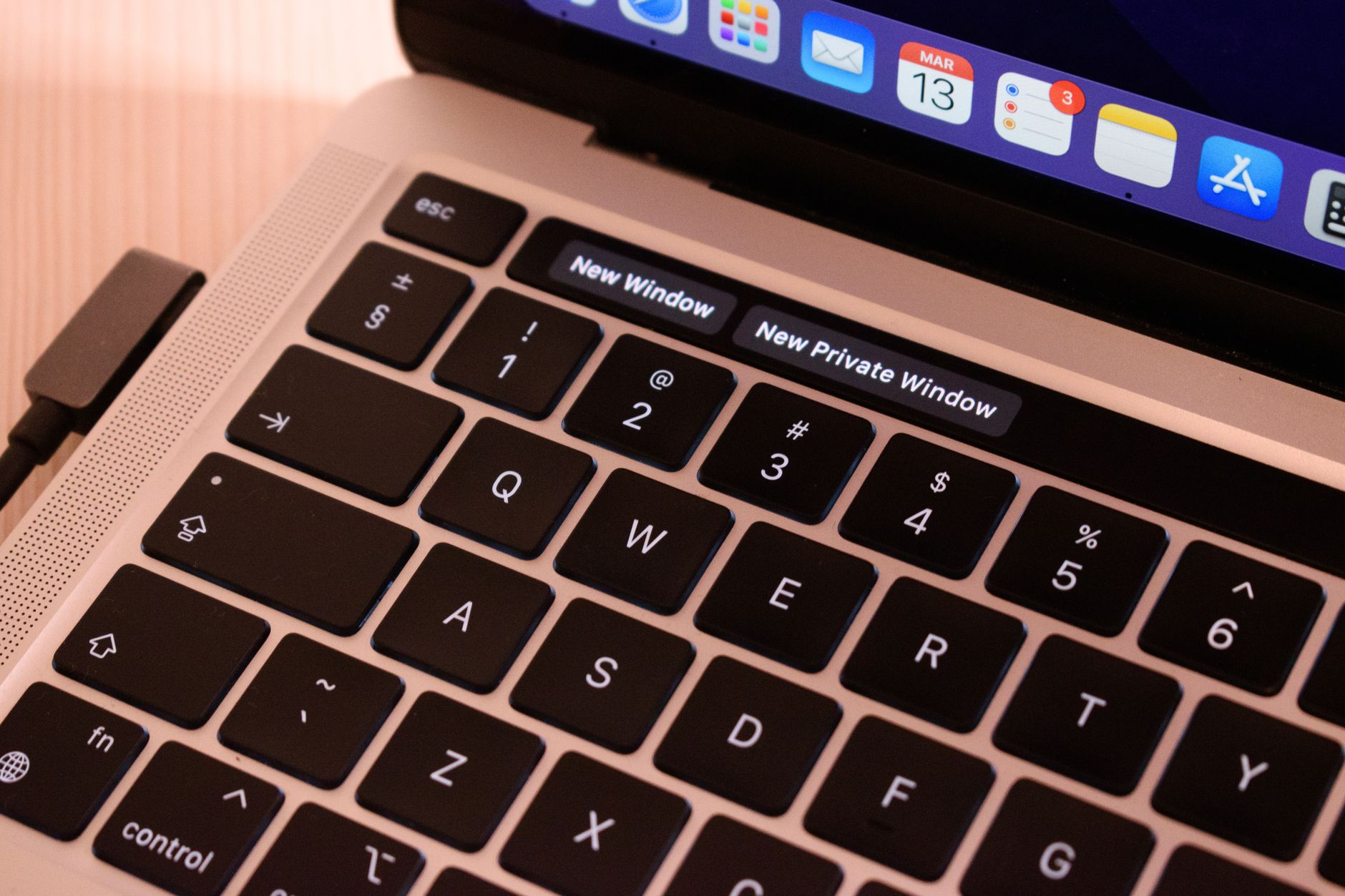
"Chrome dock" means three different things depending on who is searching. Most often it means getting something from Chrome into the macOS Dock: a specific Chrome profile, or a single site such as Gmail, so it opens with one click. Sometimes it means the opposite problem, where the Dock disappears whenever a Chrome window is in front. And for developers it means where DevTools sits: docked to the right, the bottom, the left, or floating in its own window. This guide covers all three, using the menu names Chrome and macOS show today. The short answers: a Chrome profile cannot be pinned directly, but a small launcher or an installed web app can stand in for it. A hidden Dock is almost always full screen or the auto-hide setting. DevTools placement is in its own three-dot menu. Everything below was checked against Google and Apple documentation on October 18, 2026.
Why the Dock shows one Chrome icon for every profile
The macOS Dock pins applications, and an application is a bundle with one identity. Google Chrome is a single bundle at /Applications/Google Chrome.app with the bundle identifier com.google.Chrome. Every window, in every profile, comes from that one bundle. So the Dock has one thing to show, and clicking it brings forward whichever Chrome window was last active.
A profile is not an application. It is a folder under ~/Library/Application Support/Google/Chrome holding its own cookies, history, extensions and settings. The profiles are separated in terms of data, but the operating system sees them as one app. That has three visible effects:
- One Dock icon and one Command+Tab entry for all profiles.
- One notification identity, so alerts from every profile arrive as "Google Chrome".
- No built-in "add this profile to the Dock" option on a Mac.
Every method below works around this in the same way. It creates something macOS accepts as a separate application, and makes that application open the right profile or the right site.
Option one: install the site as a web app
If the goal is one site in one account, such as the work Gmail, Chrome can already produce a real app. Google's help page on using web apps gives the path: open the site, then at the top right select More, then Cast, save, and share, then Install page as app. On some sites an Install icon also appears at the right of the address bar.
The installed app gets its own Dock icon and its own Command+Tab slot. On a Mac it is saved as a bundle in the Chrome Apps.localized folder inside the Applications folder of the home folder, so it can be dragged into the Dock or found with Spotlight. It runs in the profile that installed it, which means the work Gmail installed from the work profile stays signed in to the work account.
Two points to know before relying on it:
- Installing the same site from two profiles produces two apps with the same name and icon. Rename them in Finder right away.
- To remove one, open the app, choose More, then Uninstall followed by the app name. The full list of installed apps is at
chrome://apps, where right-clicking an app offers Create shortcut.
This is the fastest route. It covers one site per app, not a general Chrome window.
Option two: a launcher that opens a whole profile
To open a complete Chrome window in a particular profile from the Dock, build a tiny app that runs one command. Automator, included with macOS, does this without any code beyond a single line.
Find the profile's folder name
The command needs the folder name, not the name shown in Chrome. A profile labelled "Work" may live in a folder called Profile 3. Open a window in that profile, go to chrome://version, and read the Profile Path line. The last part of the path is the folder name. The first profile ever created is called Default, and numbers can skip because deleted profiles do not renumber the others.
Build the app
- Open Automator, choose New Document, and pick Application.
- Search the actions for Run Shell Script and drag it into the workflow.
- Replace the sample text with this line, using the folder name found above:
open -na "/Applications/Google Chrome.app" --args --profile-directory="Profile 3"
- Save it in the Applications folder with a clear name such as "Chrome Work", then drag it into the Dock.
The -n flag is the part that is most often left out. The macOS manual page for open describes it as "Open a new instance of the application(s) even if one is already running." Without it, when Chrome is already open, the request goes to the running copy and the profile argument is ignored, so the launcher opens another window of whatever profile was already in front.
To give the launcher a recognisable icon, copy an image, select the app in Finder, choose File > Get Info, click the small icon at the top left of the Info window, and paste.
The limitation is that the launcher quits as soon as it has started Chrome. Its Dock icon does not stay lit, and the profile windows still belong to the single Chrome icon.
Make the windows easy to tell apart
A launcher gets the right profile open, but once several profile windows are on screen they still look alike in the Dock and in Command+Tab. Chrome's own profile settings help here. Google's page on managing Chrome with multiple profiles gives the path: select the Profile button at the top right, choose Manage Chrome profiles under "Other Chrome profiles", then More and Edit on the profile to change. A different colour theme per profile changes the whole window frame, which is far easier to spot than the small avatar.
The same screen has a Show on startup option. With it turned on, Chrome asks which profile to open each time it starts, so clicking the ordinary Chrome icon in the Dock no longer opens a window in the wrong account by default. For people who only switch profiles a few times a day, this one checkbox can remove the need for a launcher altogether.
A launcher can also open a specific page. Adding a URL to the end of the command, after the profile flag, opens that page in the chosen profile, so a Dock icon can lead straight to a dashboard instead of a blank tab.
Option three: Safari's Add to Dock
For a single site, Safari offers a built-in alternative that some people prefer for accounts they want kept away from Chrome entirely. Apple's page on Safari web apps says that from macOS Sonoma 14 onward, any webpage can be saved as a web app with File > Add to Dock, or from the Share button.
According to the same page, a Safari web app shares no browsing history, cookies, website data or settings with Safari, which makes it a clean way to hold a second account of one service. It is saved to the Applications folder of the home folder, can be renamed and given a new icon from its own Settings, and can show the number of unread notifications as a red badge on its Dock icon when the site sends notifications.
Comparing the three ways in
| Method | Own Dock icon that stays open | Opens a full Chrome window | Uses an existing Chrome profile | Setup time |
|---|---|---|---|---|
| Chrome "Install page as app" | Yes | No, one site | Yes, the installing profile | About a minute per site |
| Automator launcher | No, it quits after launch | Yes | Yes | About ten minutes |
| Safari "Add to Dock" | Yes | No, one site in Safari's engine | No, separate storage | About a minute per site |
If most of the need is a handful of services rather than whole profiles, the first and third rows are simpler than any launcher.
When the Dock disappears behind Chrome
A question that ranks for this search on the Apple Support Community describes the Dock vanishing whenever a Chrome window is selected. Two settings explain nearly every case.
Full screen. Apple's guide to using apps in full screen says that in full screen, the Dock is shown or hidden by moving the pointer to or away from its location. A Chrome window put into full screen with the green button in the top-left corner behaves this way. The same guide notes that maximising instead of going full screen expands the window while the menu bar and the Dock remain visible. Hover over the green button and choose Exit Full Screen to return.
Auto-hide. In System Settings, the Desktop & Dock settings include "Automatically hide and show the Dock". When it is on, the Dock hides whenever it is not in use, for every app. If the Dock only seems to hide with Chrome, it is usually because Chrome windows are the ones sized to the edge of the screen.
If neither setting explains it, check each Chrome window separately. Full screen is set per window, so one window in full screen and another in a normal size can make the Dock appear to hide only some of the time.
Docking Chrome DevTools
For developers, "dock" refers to DevTools. Chrome's documentation on customizing DevTools states that DevTools is docked to the right of the page by default, and can be docked to the bottom or left, or undocked into a separate window.
There are two ways to change it:
- Open the three-dot menu labelled Customize And Control DevTools and choose Undock into separate window, Dock to left, Dock to bottom, or Dock to right.
- Open the Command Menu, start typing "dock", and pick one of the suggested options. On macOS, Command+Shift+D toggles Restore last dock position.
The same page notes that most DevTools settings sync across devices, but the dock position does not, because developers often prefer different positions on different sites. A DevTools panel that keeps returning to the right on a second Mac is expected behaviour.
When the real issue is too many windows of one app
Behind most "chrome dock" searches is the same situation: several accounts and services living inside one Chrome icon, and no fast way to reach a specific one. Web apps and launchers each fix part of it.
A different category of tool is built around that situation. An app aggregation browser keeps each web app as a separate entry in a sidebar, each with its own sign-in, so two accounts of the same service can sit next to each other in one window. One macOS example of this kind lets the Dock badge count be chosen per app and per workspace, and lists the services it supports on its supported apps page. Its free plan covers one workspace with up to three apps, as set out on the pricing page.
What to change first
For one site in one account, install it as a Chrome web app or use Safari's Add to Dock. For a whole profile, build the Automator launcher with the -n flag. If the Dock keeps vanishing, check full screen and auto-hide before anything else. If the underlying need is many accounts of the same web apps, try SpaceDeck.
Frequently asked questions
Can I add a specific Chrome profile to the Dock on a Mac?
Not directly. Chrome on macOS is one application, so the Dock shows one icon for every profile. An Automator app that runs open -na with the --profile-directory flag can act as a launcher for one profile, and a site installed with Install page as app gets its own Dock icon in the profile that installed it.
Where does Chrome save installed web apps on a Mac?
They are saved as app bundles in the Chrome Apps folder inside the Applications folder of the home folder. From there they can be dragged into the Dock. The full list is also available at chrome://apps, and each app can be removed from its own More menu with Uninstall.
Why does the Dock disappear when Chrome is in front?
The Chrome window is most likely in full screen, where macOS hides the Dock until the pointer moves to its edge. The other common cause is "Automatically hide and show the Dock" in Desktop & Dock settings. Maximising the window instead of using full screen keeps the Dock visible.
How do I move Chrome DevTools from the side to the bottom?
Open the three-dot Customize And Control DevTools menu and choose Dock to bottom. The Command Menu also accepts "dock" followed by a position. The dock position is not synced between devices, so it may need to be set again on another computer.