Browser Tab vs Window: What Actually Differs on a Mac
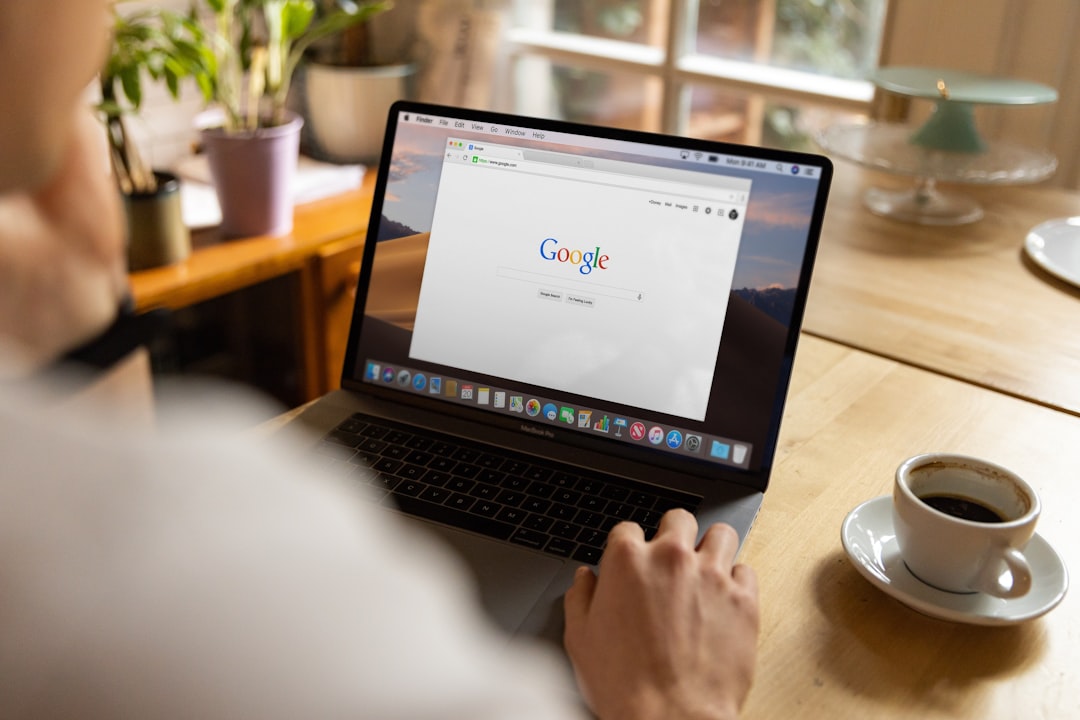
A window is a separate frame that macOS manages: it has its own title bar and traffic light buttons, it can be moved, tiled, minimised, sent to another display or shown in Mission Control. A tab is a page inside a window: it shares that window's frame and toolbar, and macOS does not see it at all. Both show web pages the same way, and in the same browser profile both share the same sign-ins and cookies. So the real difference is not about the page. It is about what your Mac can do with the container the page sits in.
That one distinction explains most of the practical choices people face: why two web apps side by side need two windows, why a tab cannot be dragged into Stage Manager on its own, why opening a link in a new window does not give you a fresh login, and why a hundred tabs in one window can feel worse than ten windows. The sections below go through each of these with the menu names macOS, Safari and Chrome use today. Menu names were checked against Apple's and Google's help pages on October 18, 2026.
What macOS can do with a window but not a tab
macOS treats each window as its own object. Apple's help page on moving and arranging app windows lists what that allows:
- Holding the pointer over the green button and choosing a position under Move & Resize fills the left or right half, or the top or bottom half, of the screen.
- Dragging a window close to another makes them align without overlapping.
- Command-M minimises a window to the Dock. Command-W closes it.
- Mission Control lays out every open window in a single layer so you can pick one.
None of this applies to a tab. A tab cannot be tiled to the left half of the screen, minimised on its own, or picked out in Mission Control. Stage Manager groups windows, not tabs. If you want Gmail on the left and a document on the right, using the system's own tiling, they have to be two windows.
Keyboard switching follows the same line. Command-Tab moves between apps. Command and the grave accent key (the key above Tab on most keyboards) moves between windows of the app you are in, according to Apple's list of Mac keyboard shortcuts. Moving between tabs is handled by the browser itself: in Chrome and Safari, Command and a number key jump to a tab by position, and Control-Tab moves to the next tab.
Turning one into the other
macOS has commands for both directions. In most apps that support tabs, Window > Merge All Windows gathers every window of that app into one tabbed window. Window > Move Tab to New Window, or simply dragging a tab out of the tab bar, does the reverse. Chrome's Manage tabs help page describes the same drag: click and drag the tab outside the Chrome window and it becomes its own window.
What a tab and a window share: sign-ins and cookies
This is the part most explanations skip, and it is the part that causes the most confusion.
In a normal browser, every tab and every window in the same profile reads from one shared store of cookies. That means:
- Opening a link "in a new window" does not sign you out or give you a clean session. If you are signed in to one Google account in a tab, a new window in the same profile is signed in to the same account.
- You cannot hold two different accounts of the same service in two tabs, or two windows, of one profile. The second sign-in replaces the first, or the service makes you choose between them.
What does change the cookie store is the profile, or a private window. Chrome's help page on tabs makes the boundary explicit when it explains how to move a tab to another window: both windows must be signed in to the same profile. A window that belongs to a different Chrome profile, or a private (Incognito) window, has its own sign-ins. A tab can never cross that line. A window can.
So does a new window help with a second account? Only if that window belongs to another profile or is private. The frame alone does nothing for your logins.
Why this matters for web apps you use all day
If your day runs on web apps such as mail, chat and calendars, the account question tends to matter more than the visual one. Two Gmail accounts, a client's Slack and your own, a personal and a work Google Drive: each pair needs separate cookie storage. In a regular browser that means one profile per account, each with its own window, its own extensions and its own bookmarks. That works, but it multiplies windows quickly.
The settings that decide whether a tab or a window opens
Whether a link or a new page lands in a tab or a window is not fixed. Three settings control it on a Mac.
macOS: Prefer tabs when opening documents
In System Settings, open Desktop & Dock. The option "Prefer tabs when opening documents" lets you choose Never, Always, or In Full Screen, as described on Apple's Desktop & Dock settings page. This affects apps that use the system's own tab support, including Safari, Finder and many document apps. Set it to Always and new documents open as tabs in an existing window instead of a new window.
Safari: Open pages in tabs instead of windows
In Safari, choose Safari > Settings, then click Tabs. The option "Open pages in tabs instead of windows" has three values, per Apple's Safari Tabs settings page:
| Value | What happens |
|---|---|
| Never | Web pages open in windows |
| Automatically | Pages open in tabs unless a page is designed for a specially formatted window |
| Always | Pages open in tabs |
The same settings pane also controls "Automatically close tabs" (after one day, one week or one month, or Manually), whether Command-click opens a link in a new tab, and whether a new tab or window comes to the front when it opens.
Chrome: keyboard and mouse
Chrome has fewer switches but clear shortcuts. Command-T opens a new tab. Command-N opens a new window. Command-click on a link opens it in a new tab in the background. Pinned tabs, which are smaller and show only the site icon, keep frequently used pages at the left of the tab strip. Tab groups add a name and colour to a set of tabs, and when tabs and history sync with your Google Account, Google says changes to groups are saved and synced across your devices.
Memory and performance: does a tab cost less than a window?
A common belief is that tabs are "lighter" than windows. In modern browsers the difference is small, because Chromium-based browsers and Safari run web content in separate processes whether a page sits in a tab or a window. What uses memory is the number of pages running, not how they are framed.
Browsers now manage that cost for you, mostly at the tab level. Chrome's performance settings page describes Memory Saver: Chrome deactivates tabs you are not using to free memory, and reloads a tab automatically when you return to it. There are three levels (moderate, balanced, maximum) that change how quickly tabs become inactive, and an option called "Inactive tabs appearance" that draws a ring around the icon of an inactive tab. Energy Saver, when the Mac is unplugged or the battery is low, stops eligible CPU-intensive background tabs, but not tabs running a video call or playing audio.
The practical consequence is that a web app sitting in a background tab may be deactivated and reloaded. For a reference article that is fine. For a chat app or inbox you rely on for notifications, a reload means a short gap. If you notice missed or late notifications from a web app, check whether its tab was put to sleep.
When to use a tab and when to use a window
With the mechanics clear, the choice becomes fairly mechanical too.
| Situation | Better choice | Why |
|---|---|---|
| Reading or comparing a few related pages | Tabs in one window | One frame, quick switching with Command-number |
| Two pages side by side on screen | Two windows | Only windows can be tiled by macOS |
| One page on a second display | A window | Tabs cannot sit on a different display from their window |
| A second account of the same service | A window in another profile | Tabs and windows in one profile share sign-ins |
| A web app you keep open all day | Its own window, or a pinned tab | Easy to find with Command-grave or a fixed position |
| A long research session you will return to | A tab group, or a window you leave open | Keeps the set together |
The pattern underneath the table: use tabs to group pages that belong to one task, and use windows when the operating system needs to treat something separately, either on screen or in terms of accounts.
Where both run out
The approach starts to strain when you have many web apps, several accounts per app, and want each to behave like an application rather than a page. Tabs mix apps with whatever you were reading. Windows multiply, and every extra account means another profile with its own window. Some people solve this with a browser that keeps each web app in its own window with its own sign-in, and lists them in a sidebar. The trade-offs of that approach, and how different tools handle isolated accounts, are laid out on the workspaces page and the features overview.
Common misunderstandings, corrected
A few beliefs come up repeatedly in forums and are worth putting straight.
"A new window is more private." Only a private window is. A normal new window in the same profile shares history, cookies and sign-ins with every other window.
"Closing a window closes the app." On a Mac, closing the last window of an app usually leaves the app running. Apple's help page notes that closing windows does not quit the app; Command-Q does.
"Tabs are saved, windows are not." Both are subject to the same restore rules. Chrome and Safari can reopen the previous session on launch, including every window and its tabs, depending on the startup setting. Safari's "Automatically close tabs" option, if set to a day, a week or a month, will close tabs that you have left open that long.
"Dragging a tab between windows keeps the login." It does within the same profile, because the login was never tied to the window. Chrome will not move a tab into a window of another profile at all.
What to change first
Decide whether your problem is screen layout or accounts. If it is layout, set "Prefer tabs when opening documents" and Safari's tab option to match how you work, and use windows only when you need side by side tiling or a second display. If it is accounts across many web apps, a dedicated SpaceDeck workspace keeps each app in its own window with its own sign-in instead of another browser profile.
Frequently asked questions
Is it better to open links in a new tab or a new window?
For most reading, a new tab is easier because it stays in the same frame and is quick to switch to. Choose a new window when you want to place the page next to another one on screen or move it to a second display. Neither choice changes which account you are signed in with.
Does opening a new window give a separate login?
No, not in the same browser profile. Tabs and windows in one profile share cookies, so they share sign-ins. A separate login needs a private window or a window in a different browser profile.
How can every link be made to open in a tab instead of a window on a Mac?
In Safari, go to Safari > Settings > Tabs and set "Open pages in tabs instead of windows" to Always. For other apps that use system tabs, open System Settings > Desktop & Dock and set "Prefer tabs when opening documents" to Always.
Do many tabs slow a Mac down more than many windows?
The cost comes mainly from the number of pages running, not from whether they sit in tabs or windows. Chrome's Memory Saver deactivates unused tabs and reloads them when selected, which reduces memory use but can delay notifications from web apps left in background tabs.
How can a tab be turned into its own window?
Drag the tab out of the tab bar and release it, or choose Window > Move Tab to New Window. To reverse it, choose Window > Merge All Windows, which gathers that app's windows into one tabbed window.