MacBook Air heating up and battery draining: one cause, two symptoms
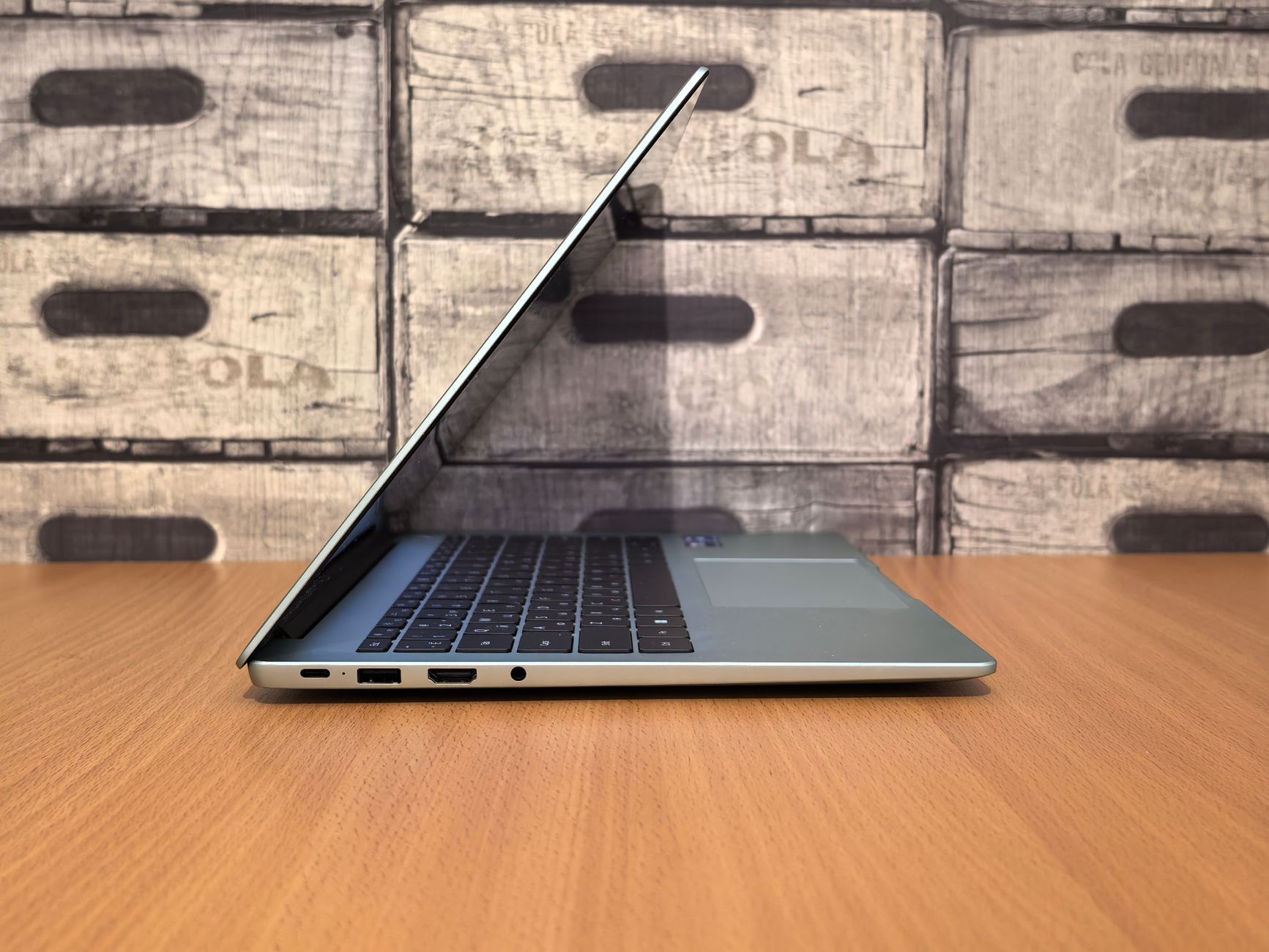
A MacBook Air that gets warm and loses charge quickly looks like two faults and is almost always one. Sustained work produces heat, and producing heat costs power. On a machine with a fan, the fan speeds up first and gives a warning. On a MacBook Air there is no warning, because Apple describes the machine as having a silent, fanless design. The first signs are the case getting warm under the palms and the battery estimate falling faster than the clock.
That changes what is worth doing about it. Searching this symptom returns two kinds of advice: long lists of general tips, and forum threads that end in a genuine hardware fault. Both exist. Between them sits the common case, which is a measurable load that can be found in about five minutes and usually turns out to be one identifiable thing.
Why heat and drain are the same reading on a fanless machine
On a laptop with fans, thermal management is visible and audible. Load rises, fans spin up, the chassis stays close to comfortable, and the fan noise is the signal that something is working hard. Apple states that Mac laptops with fans turn them on automatically to cool critical components.
The Air has no fan to turn on. The heat produced by the processor has to leave through the chassis, which is why the case temperature is the outward signal, and why the machine reduces its own performance when it cannot shed heat quickly enough. The power that produced the heat came from the battery, so the same load shows up twice: once as warmth and once as a shorter runtime.
This is the reason the two symptoms should be investigated as one. Anyone chasing "why is the case warm" separately from "why is the battery draining" will find two sets of advice and apply both, without ever measuring the thing they have in common.
There is a second consequence worth knowing. Because the Air is silent under load, it is entirely possible for a runaway process to work at full effort for an hour without anyone noticing, which cannot really happen on a machine whose fans announce it.
Two readings that separate a load problem from a battery problem
These take a few minutes and split the problem cleanly in two.
The first is in Activity Monitor's Energy pane, and Apple documents what each column means. Energy Impact is a relative measure of the current energy consumption of an app, where lower is better. 12 hr Power is the average energy impact of an app over the last 12 hours, or since the Mac started, and Apple notes that this column appears only on Mac laptops. App Nap shows whether App Nap is active for that app. Preventing Sleep shows whether an app is preventing the Mac from going to sleep. The bottom of the window shows overall energy use, and on a laptop it adds the remaining charge, the estimated time remaining, and a Battery (Last 12 hours) graph.
The 12 hr Power column is the one to sort by, because Energy Impact is a snapshot and can be innocent at the exact moment it is read. An app with a high 12 hr Power figure has been working for hours, which is precisely the pattern that produces a warm case and a short day.
The second reading is the battery's cycle count. Hold the Option key, click the Apple menu, choose System Information, then select Power under the Hardware section. The current cycle count is listed under Battery Information.
Apple publishes the maximum cycle count per model, and every MacBook Air model in that table is rated at 1000 cycles. Apple also states what that number means, which is more useful than the number itself: a battery is designed to retain up to 80 percent of its original charge capacity at its maximum cycle count, and a replacement is recommended at that point to maintain performance. A charge cycle is completed when all of the battery's power has been used, not necessarily in one charge, so using half a charge on two consecutive days counts as one cycle rather than two.
| Reading | What it suggests | What follows from it |
|---|---|---|
| High 12 hr Power on one app | A sustained load, not a battery fault | Deal with that app, the heat and the drain both go |
| Nothing above a few percent, case still warm | Environment or an external factor | Check ventilation and ambient temperature |
| Cycle count well under 1000, runtime much shorter than it was | Still a load problem | Keep looking in the Energy pane |
| Cycle count near or past 1000 | Expected capacity loss | Replacement restores runtime, and heat is a separate question |
The last two rows are the ones people get backwards. A low cycle count does not rule out battery drain, it rules out the battery as the explanation, which means the explanation is still running somewhere.
Reaching the maximum cycle count is also not a deadline. Apple states that the battery can still be used after it reaches its maximum cycle count, with a reduction in battery life as the consequence rather than a failure. So a machine at 1100 cycles that now runs for four hours instead of eight is behaving as designed, and a machine at 200 cycles that has lost half its runtime in a month is not.
The Battery (Last 12 hours) graph at the bottom of the Energy pane is the cheapest way to tell the two apart, because it shows the shape of the drain rather than a single figure. A straight, steep line through the working day points at a constant load. A flat line that drops sharply at intervals points at something scheduled. A line that keeps falling overnight points at the Preventing Sleep column further down this page.
What Apple says to check before anything else
Apple's own guidance on Mac laptop operating temperature is short, specific, and largely about the physical situation rather than software.
Use the machine where the ambient temperature is between 10 and 35 degrees Celsius, which is 50 to 95 degrees Fahrenheit, and where relative humidity is between 0 and 95 percent without condensation. Apple singles out parked cars as a place that exceeds that range. Use it on a stable work surface that allows for good ventilation, and specifically not in bed, on a pillow, or under bedding. Do not put anything over the keyboard. Use only Apple authorised power adapters. Make sure all Mac software updates are installed.
Apple's next instruction is the measurement step: if the machine gets warm even when it is not doing tasks that require intensive calculations, use Activity Monitor to check CPU activity and look for malfunctioning processes that put a significant load on the processor. If the problem persists, close and open the lid, or restart.
One item on that page contradicts a lot of popular advice. Apple states that third party apps which report laptop temperature do not measure the external case temperature, that the case temperature is much lower than what those apps report, and that such apps should never be used to diagnose possible hardware issues. A reading from a menu bar temperature app is not evidence of a fault, and treating it as evidence is how people end up replacing hardware that was working.
The load is usually a browser, and it is usually countable
On a machine used for work rather than for video editing or compiling, the app at the top of the 12 hr Power list is a browser more often than anything else. That is not a criticism of browsers. It is what happens when a chat tool, a mail client, a project board, a calendar, a document editor, a dashboard and two AI assistants are all running as tabs. Each of those is a running application. The browser is simply the one whose name appears in the list.
Three specific contributors are worth checking, because each can be reduced without giving anything up.
Video calls are the largest by a wide margin, and they are the one case where a warm Air is entirely expected. Nothing needs fixing there beyond ventilation.
Extensions run on pages regardless of whether the tab is being looked at, and they do not appear in the tab strip where tabs can be counted. Chrome's own guidance on making the browser faster puts turning off or deleting unwanted extensions alongside closing unused tabs.
Preloading spends work on pages that may never be opened. Chrome's Preload pages setting, under Settings then Performance, makes the browser fetch pages it predicts will be visited. On a plugged in desktop machine that is a good trade. On a fanless laptop running on battery it is work being done speculatively.
What keeps the machine awake is a separate question
Overnight drain has its own explanation, and the Energy pane names it directly. The Preventing Sleep column shows which apps are holding the machine awake. A download, a shared screen session, a media player left paused, or a conferencing tool that did not fully quit will all show up there, and the machine will spend the night working instead of sleeping.
Optimised battery charging is the related setting on the other side. Apple states that from macOS Catalina onward it can be turned on to help reduce battery ageing, and that it lets the Mac learn a charging routine and wait to charge past 80 percent until the charge is needed. It does not help with a warm case, and it does slow the rate at which the cycle count climbs.
Fewer things running at once, made visible
The measuring usually ends in the same place. There is no fault. There is a machine running fifteen web applications continuously, on hardware with no fan, and the only reason it is not obvious is that all fifteen are hidden inside one window.
Making the count visible is what changes the pattern. When each service occupies its own window, closing the ones that are not needed for the current task is a decision rather than an archaeology exercise, and a closed window is not polling, not rendering and not costing anything. Grouping those windows so that a project's tools open and close together is covered under Workspaces, and what separate containers per service involve is set out on the Features page. The list of services that run cleanly in that arrangement is on Supported apps.
That will not make a video call cool. It removes the constant background cost that sits underneath everything else, which on a fanless machine is the part that decides whether the case is warm all day or only during calls.
What to change first
Open Activity Monitor, click Energy, and sort by 12 hr Power. Whatever sits at the top has been doing the work that produced both symptoms, and until that name is known every other change is guesswork.
If the answer is a browser carrying a dozen always on web applications, the fix is to stop running all of them all day, and SpaceDeck is built around making that count visible.
Frequently asked questions
Is it normal for a MacBook Air to get hot when it has no fan?
Getting warm during normal use is expected, and Apple says so directly. The Air has a silent, fanless design, so heat leaves through the chassis rather than through moving air, which makes the case the place the warmth is felt. What is not normal is warmth while nothing demanding is running, and Apple's instruction for that case is to check CPU activity in Activity Monitor for a malfunctioning process.
How many charge cycles does a MacBook Air battery have?
Apple's published table lists 1000 as the maximum cycle count for every MacBook Air model. The number that matters more is what happens there: the battery is designed to retain up to 80 percent of its original capacity at that point, and Apple recommends replacement then to maintain performance. The current count is under Power in System Information, reached by holding Option and clicking the Apple menu.
The cycle count is low but the battery still drains fast. What does that mean?
It means the battery is not the explanation, so something is using the power. Sort the Energy pane by 12 hr Power to find what has been working over the last half day, and check the Preventing Sleep column for anything holding the machine awake. A low cycle count rules out wear, not consumption.
Do temperature monitoring apps help diagnose this?
Apple advises against using them for diagnosis. Its guidance states that third party temperature apps do not measure the external case temperature, that the actual case temperature is much lower than what they report, and that they should never be used to diagnose possible hardware issues. Activity Monitor is the tool Apple points to instead.
Does closing browser tabs actually make a measurable difference?
It does, because each open web application is a running program that renders, polls and holds a connection. The effect shows up in the Energy pane within a few minutes. The catch is that it does not last: the tab count climbs back within a week, because each tab was something somebody needed. That is why the durable version of this fix is structural rather than a cleanup.
Should the machine be restarted, or is that just folklore?
Apple lists it, after the measurement step. Its guidance is to check CPU activity in Activity Monitor for a malfunctioning process first, and if the problem persists, to close and open the lid or restart. Restarting without looking at the process list clears the symptom and loses the evidence, so the order is worth keeping.